Creating Label Sets
An important first step in the annotation process is deciding what key features to annotate. For example, in a Dataset of automotive footage, key features to annotate would likely be cars, trucks, pedestrians, stop signs, traffic lights, etc. Conservator makes use of Label Sets to group labels that will be commonly used together.
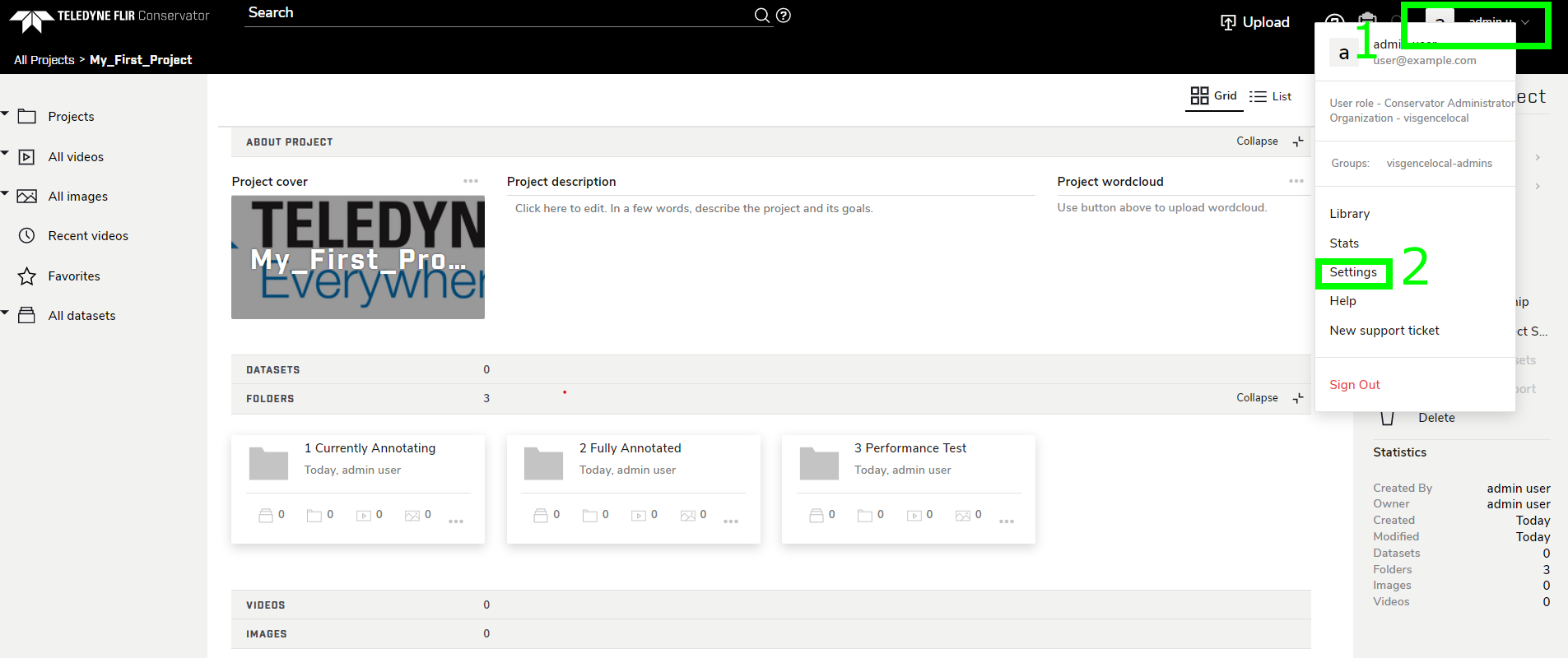
To create a Label Set, navigate to Settings by clicking on your user name in the top right-hand corner to open the User Menu, then clicking Settings.
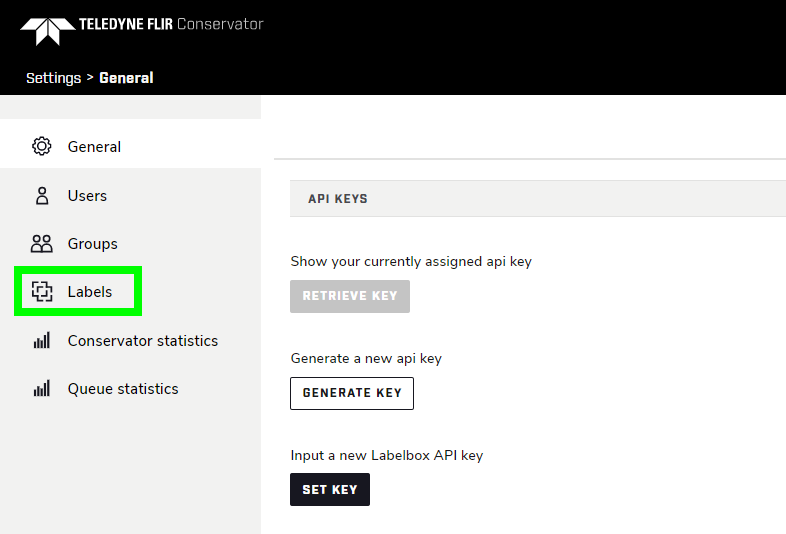
Next, open the Labels page in the left sidebar.
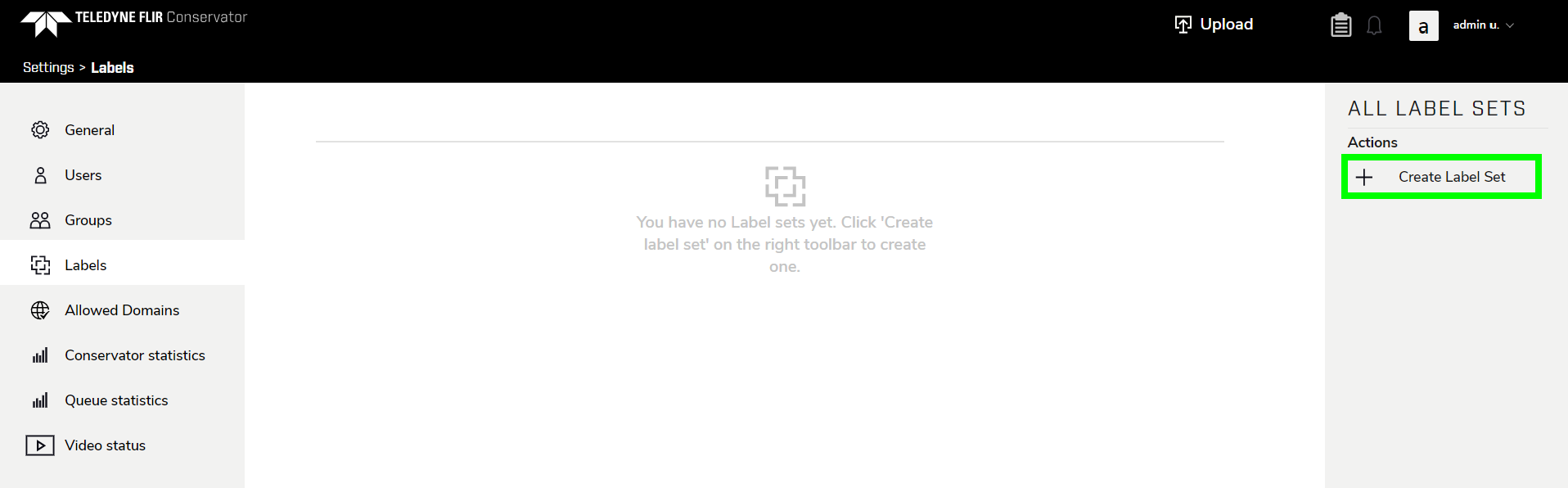
The Labels page consists of a list of all Label Sets in your domain. Each Label Set can be used for a specific use case or model.
Click on Create Label Set in the right sidebar to open the Label Set Creation dialog.
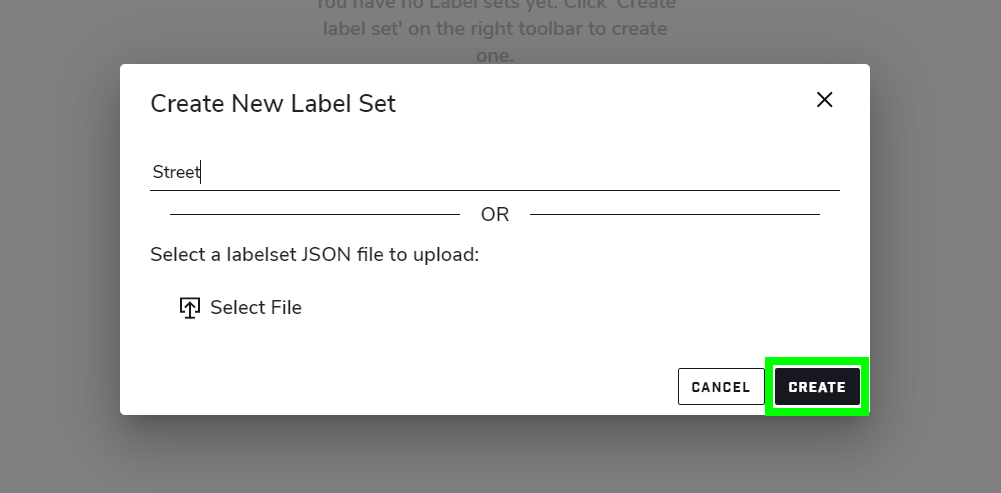
Enter the desired Label Set name, then click Create to open the Object Creation Dialog. Enter a desired name, then click Create.
Once you’ve created a Label Set, click on it in the Labels page to perform actions.
To add a label, click Add object in the right sidebar to open the Label Creation dialog. Fill and change the fields as desired, then click Add.
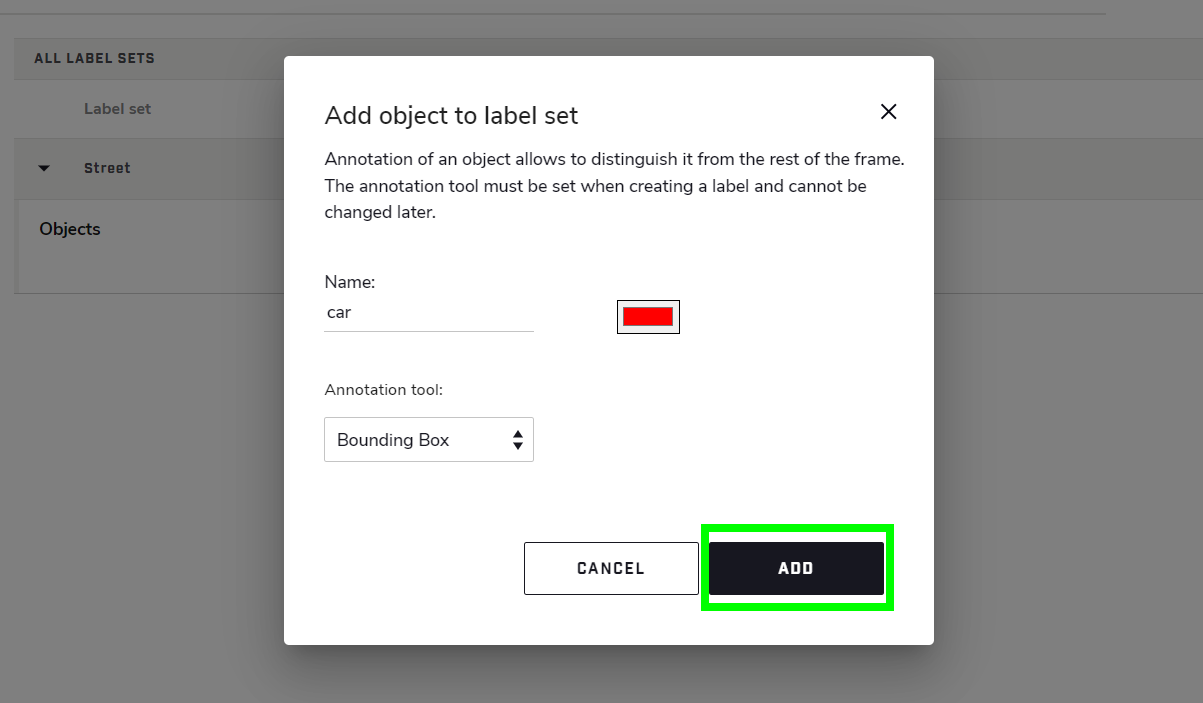
The name and color can later be changed by going to the Labels page, selecting the Label Set, selecting the Label, then clicking Edit object in the right sidebar. The annotation tool selection cannot be changed after creation.