Adding Video Frames to a Dataset Using the Segment Tool
There are a few ways to add Videos and Frames to a Dataset. Using Conservator’s Segment Tool to select specific frames is the most popular and recommended way. With the Segment Tool, it is possible to add only the Frames and segments that should be included in a Dataset, as opposed to the entire Video.
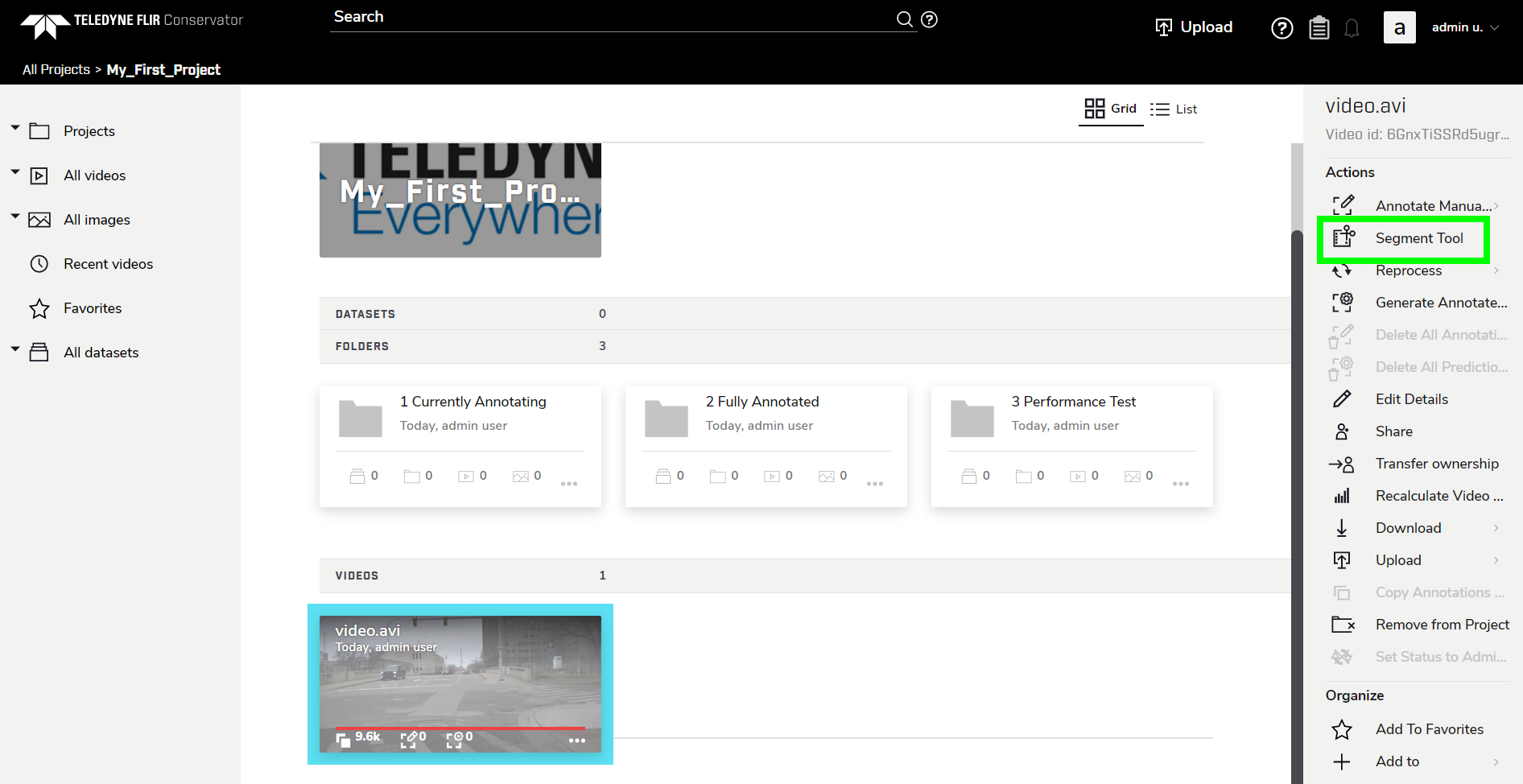
To open the Segment Tool, navigate to the Video, then click Segment Tool in the right sidebar.
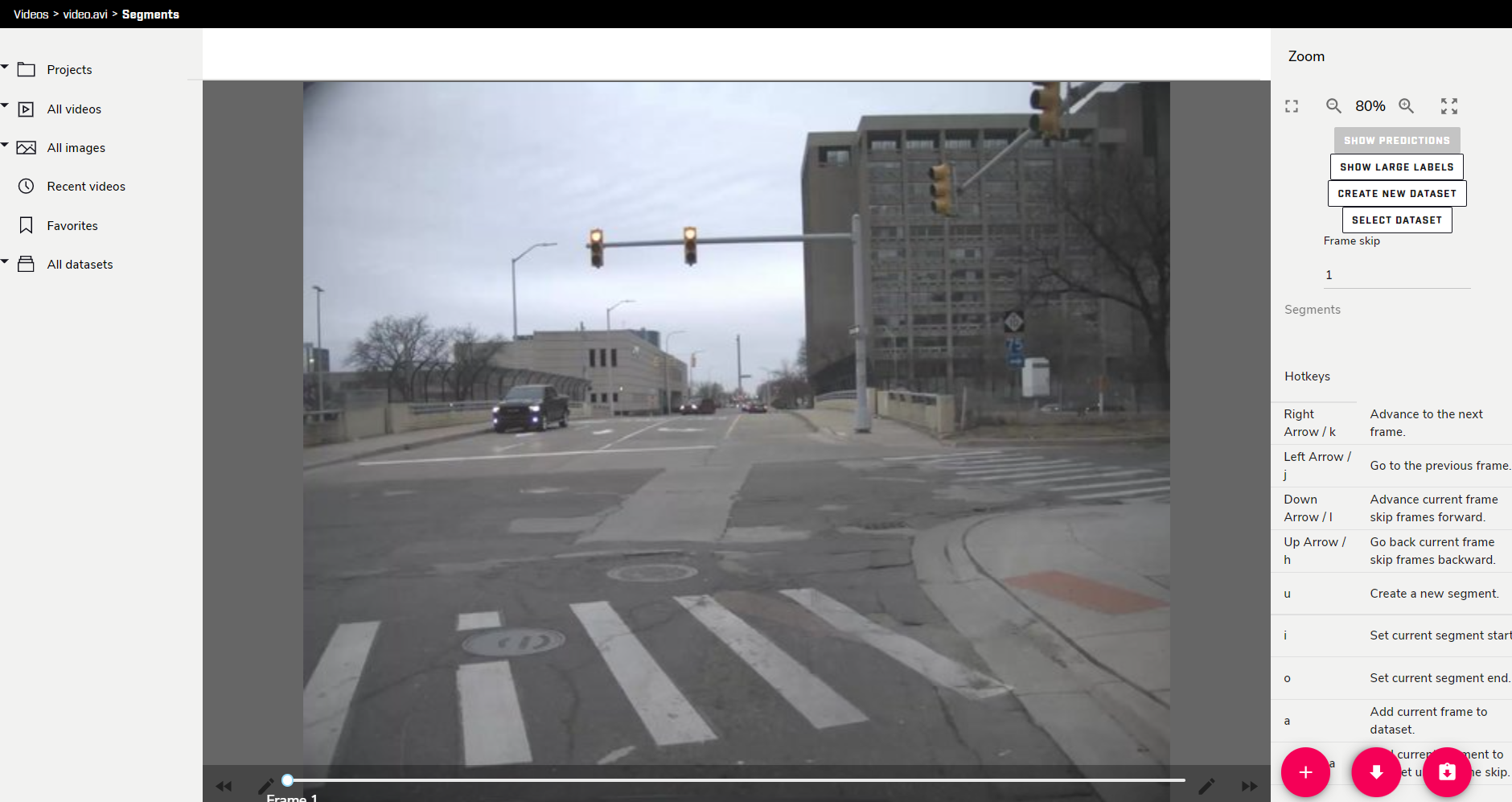
The Segment Tool has a number of shortcuts to use, but this section will be explained using the UI buttons.
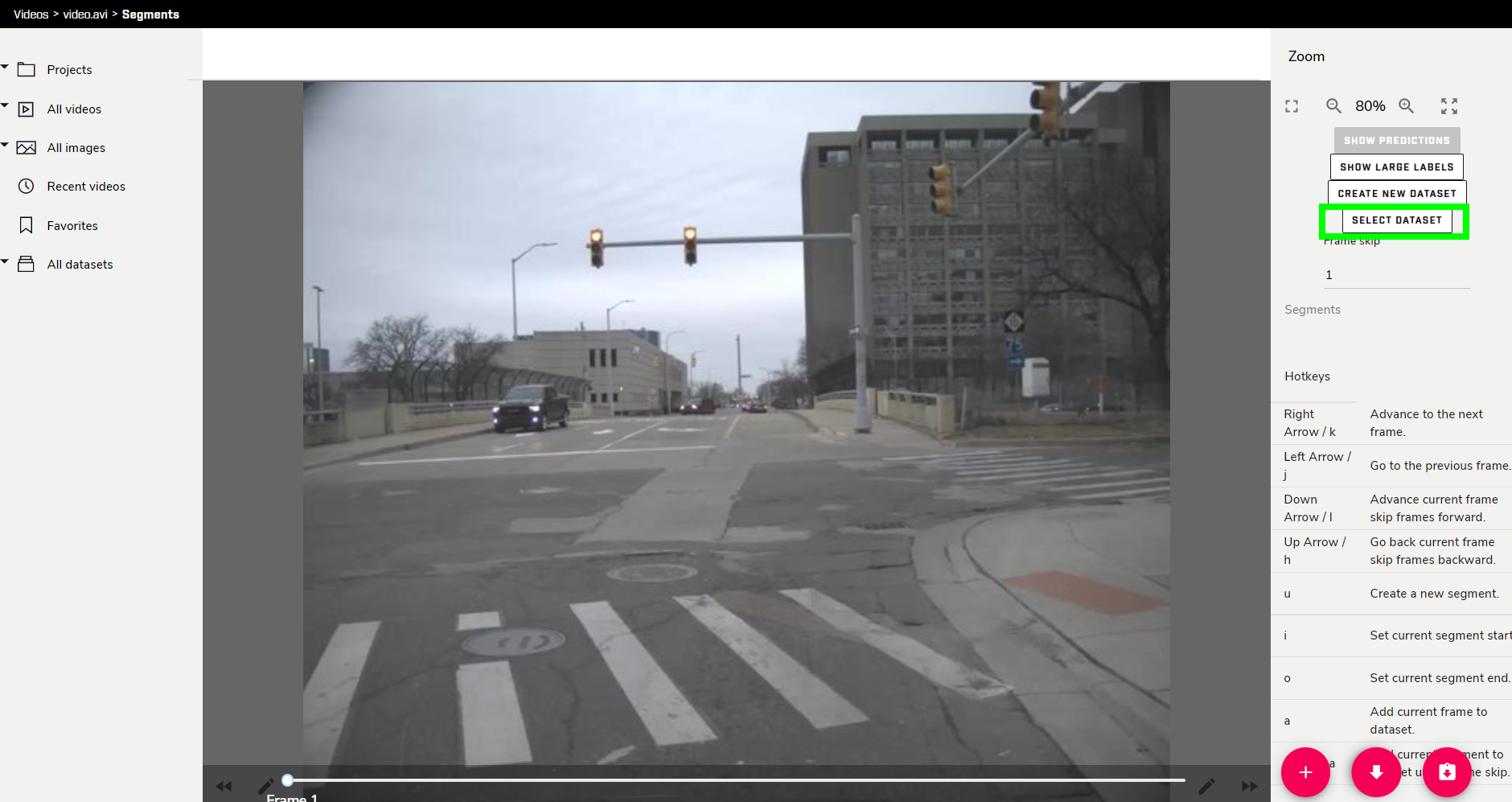
First, click SELECT DATASET.
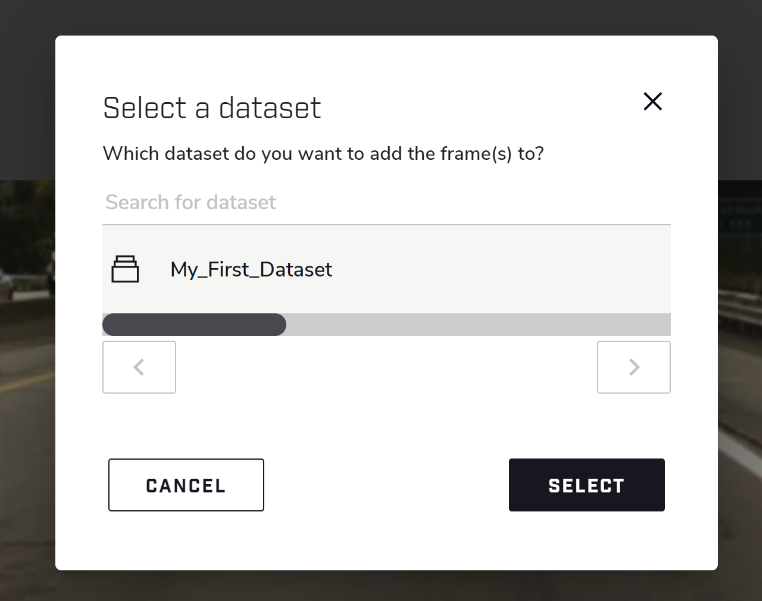
Select the desired Dataset and click Select.
Adding specific frames to a Dataset is done by creating segments.
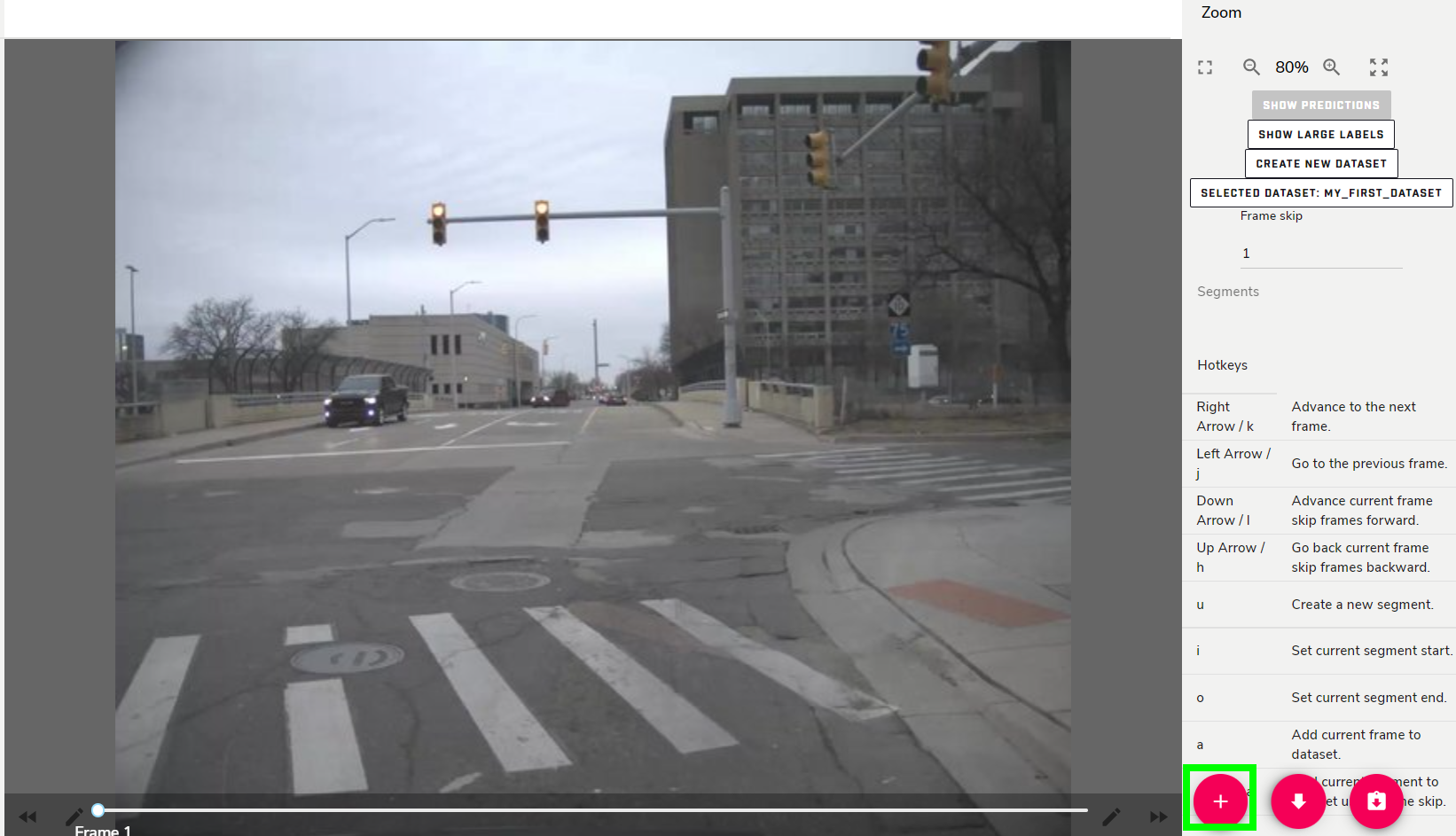
Click the Create new segment button in the bottom-right corner of the screen.
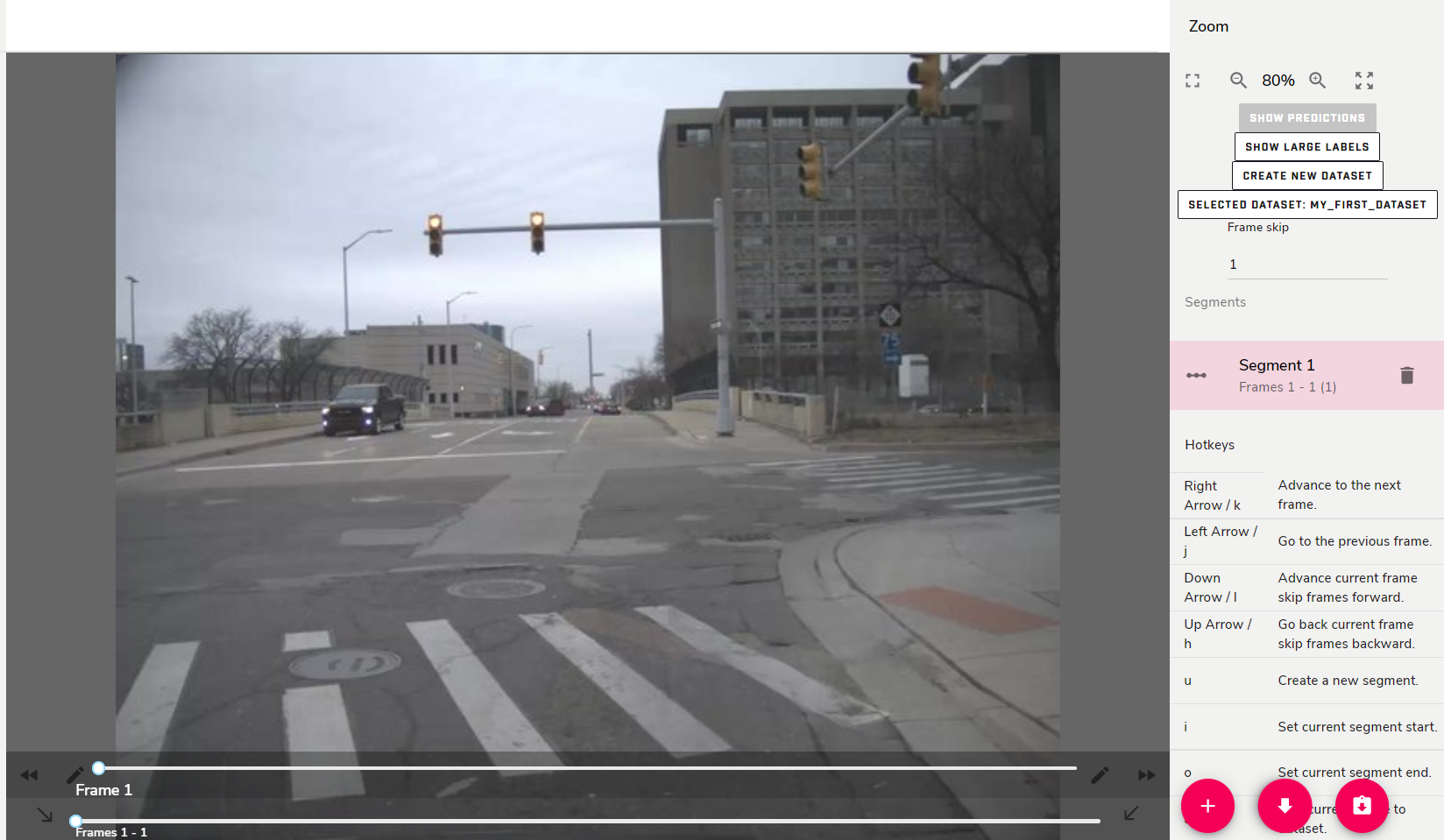
With the first segment selected in the right sidebar, there is now a second slider underneath the video, which controls the length of the segment by moving the handles (the dots on the slider) to set a start point and end point for the segment. The segment
is indicated by the space between the sliders.
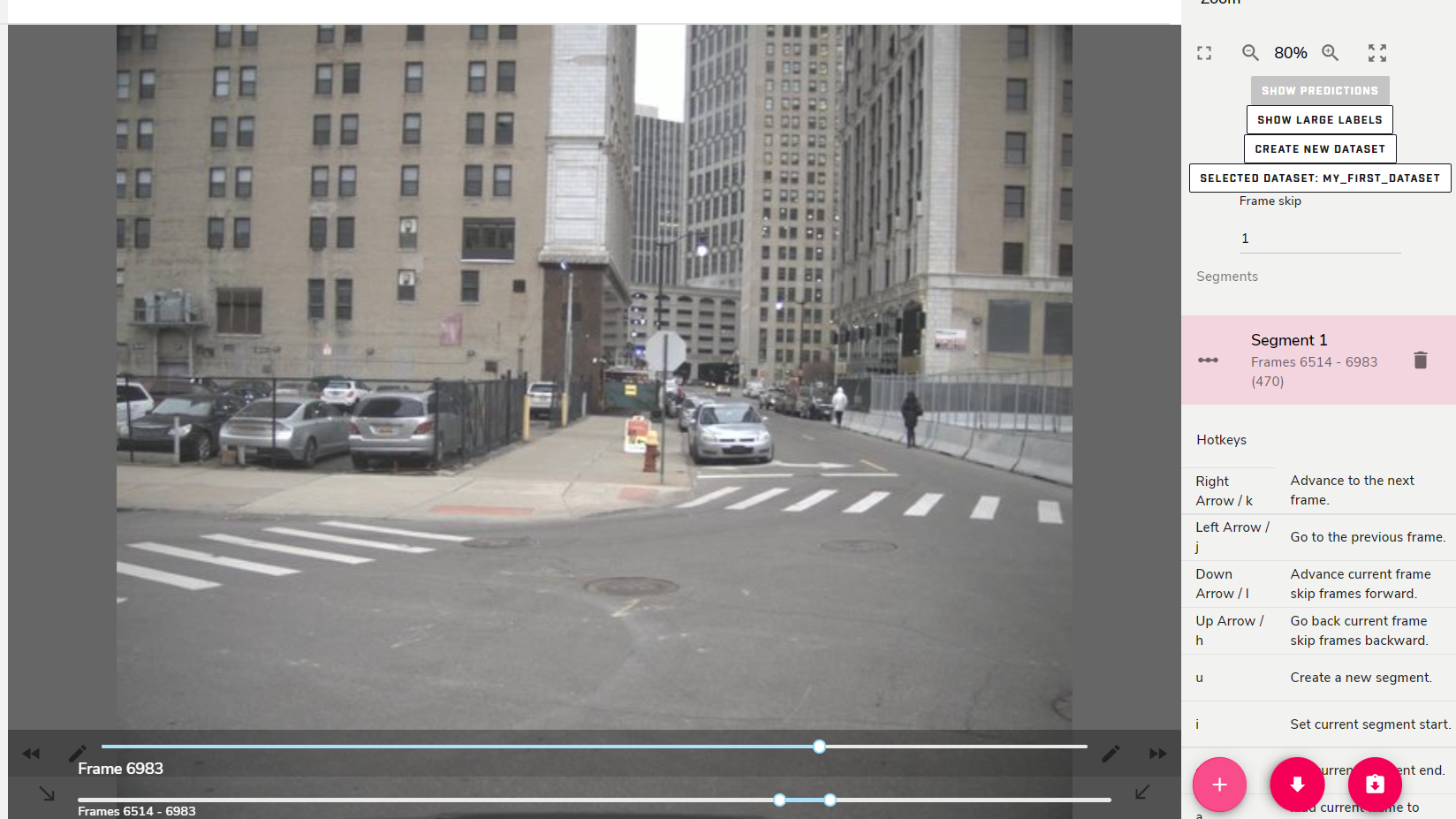
As shown in the right sidebar, this selected segment contains 470 frames. This segment can be added to the Dataset as-is with every frame included. However, it is common to not need every frame, so you can use the Frame skip tool located in the right sidebar underneath the selected Dataset.
At frame skip = 1, all frames are included. At Frame skip = 2, every other frame is included. At Frame skip = 3, only 1 in 3 frames are included, and so on.
Set the Frame skip to the desired value, then click the Add current segment to dataset using frameskip button at the bottom-right of the screen.
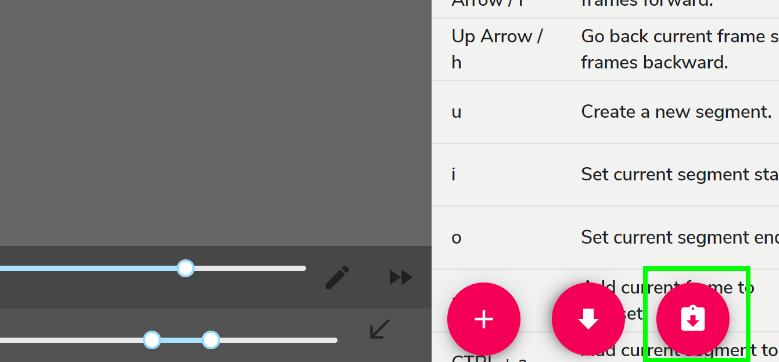
After clicking this button, the segment will be included in the dataset.